This article covers three important sections regarding supersessions / alternative parts etc:
- Part Record - Alternative Parts section
- Customer Order - View Related Parts section
- Vendor Order (VO) / Vendor Receiving (VR) for stock - Superseded Parts
Part Record - Alternative Parts section
On every Part Record, there is a section called Related > Alternate Parts
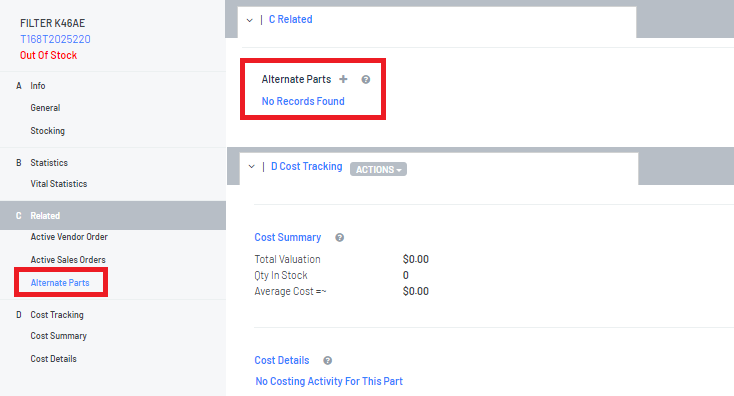
This Alternate Parts section will allow the Dealership to set up "relationships" between parts
Relationships can be:
- Replaced by
For example, Part# ABC has been Replaced By Part# 123 as the Vendor is no longer making Part# ABC
- Replaces
- Alternate
Example A:
Part# JKL - Oil Filter A is an oil filter used for services, but Part# GHI - Oil can be used instead of Part# JKL. Both Parts are available in Blackpurl and can be referenced as alternate parts on their Part Records in Blackpurl
How to set up Part Relationships
Vendor Price Files
- Supersessions (Replaced by and Replaces) would be automatically set up if the Vendor Price File indicates that there is a supersession and that the supersessions were taken into consideration when running the Price File
For Processed Price Files, when they are imported into Blackpurl, if there is a column for supersessions, the relevant Part Records will be automatically updated to include the Replaced by and Replaces
For Manual Price Files, when the user maps the Price File import, and there is a column on the Price File for supersessions, then the user must ensure that the supersession column is mapped accordingly
For example:
Price File line item for Part# ABC indicates that it has been superseded by Part# 123
When the Price Files is run, and it takes into consideration the superseded column, then:
- Part Record for Part# ABC will have a Replaced By line and then indicate that it has been replaced by Part# 123

- Part record for Part# Test123 will have a Replaces line and then indicate it is now replacing Part# ABC

Manually Adding an Alternate Part on a Part Record
Example 1
The scenario is that - Part# ABC has been superseded by Part#123, and the Dealership is manually making this change
To set up a replacement:
- Navigate to the Part Record > Alternate Parts section on Part# ABC
Click on and the Add Alternative Part option will pop up
Type - select Replaced By
Leave the toggle enabled for Reference an existing part record? (This means that the replacement part exists in BP)
Alternative Part - search for the Part that will be the replacement Part ie Part#123
Don't forget to 
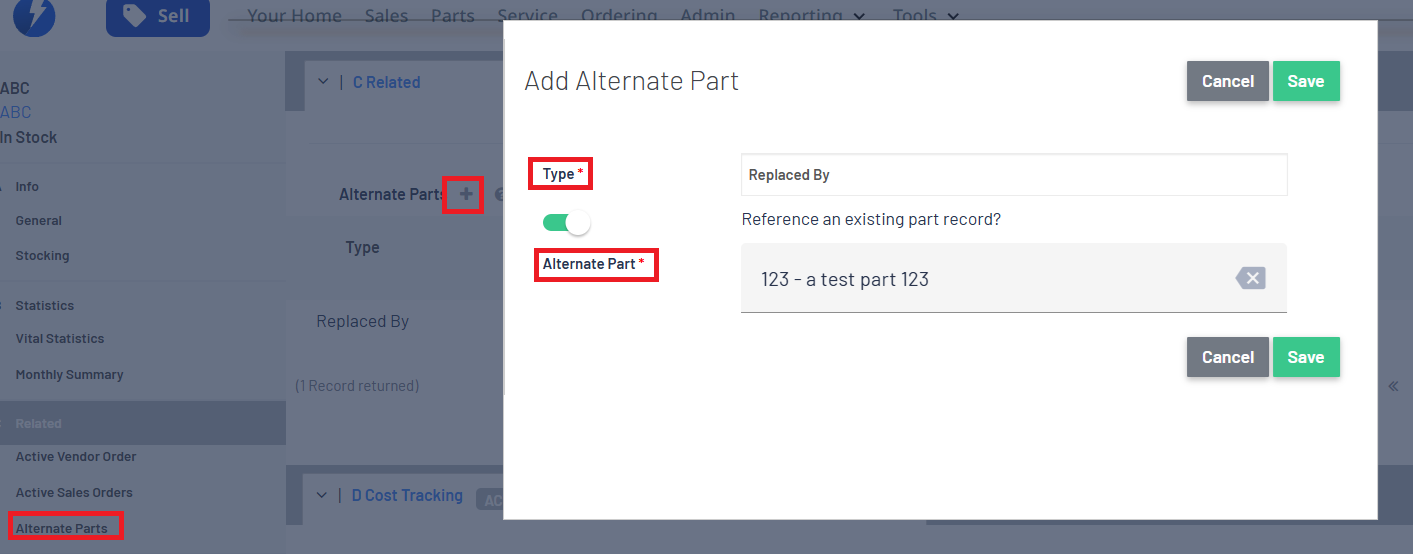
Result:
Part# ABC will show that it has been Replaced By

Part# 123 will show it Replaces

Tip: At any time, you need to edit or delete the relationship, just navigate to the relevant Part record and use the option ofto edit or
to delete
Example 2
The scenario is that Part# Filter Test is an alternate part for Part# T168T2025220
In other words, if the customer comes into the Dealership and wants Part# Filter Test but there is none in stock/available, the Dealership can sell them the alternative part that you do have stock on hand ie T168T2025220 instead
To set up the alternate:
- Navigate to the Part Record > Alternate Parts section on Part# Filter Test
Click on and the Add Alternative Part option will pop up
Type - select Alternate
Leave the toggle enabled for Reference an existing part record? (This means that the replacement part exists in BP)
Alternative Part - search for the Part that will be the replacement Part ie T168T2025220
Don't forget to
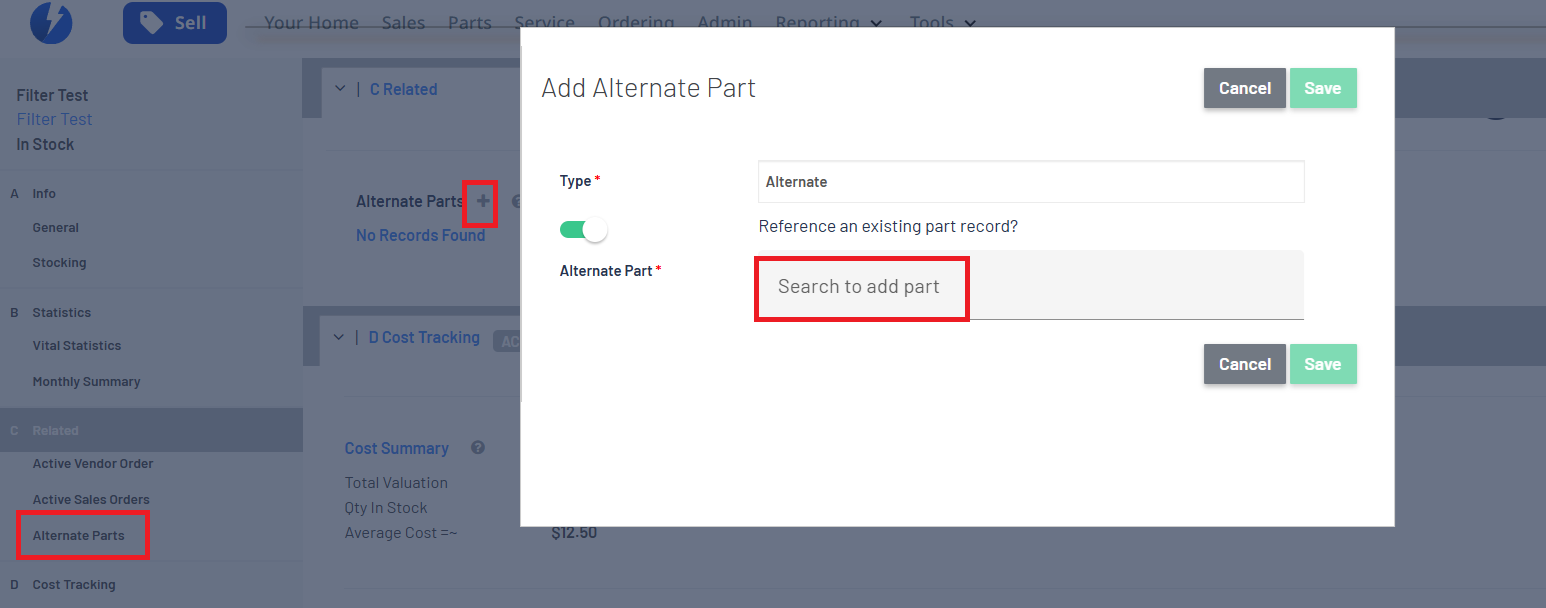
Result:
Once you have selected the part, the Alternate Parts section will look like this, and leave the relation option as Alternative

At the same time, Blackpurl will update T168T2025220 Part Record to have the alternative option as well

Example 3
If you just want to record on a Part Record that a certain part from a certain Vendor can be used as an alternative without having that part record in your Blackpurl, you can also do this
To set this up:
- Navigate to the Part Record > Alternate Parts section on the relevant part record
Click on and the Add Alternative Part option will pop up
Type - select Alternate
Disable the toggle for Reference an existing part record? (This means that the alternative part does not exist in BP)
Vendor: - Search for the relevant Vendor
Vendor Part# - Type in the Part Number (remember it does not exist in Blackpurl, and it is for reference only)
Don't forget to
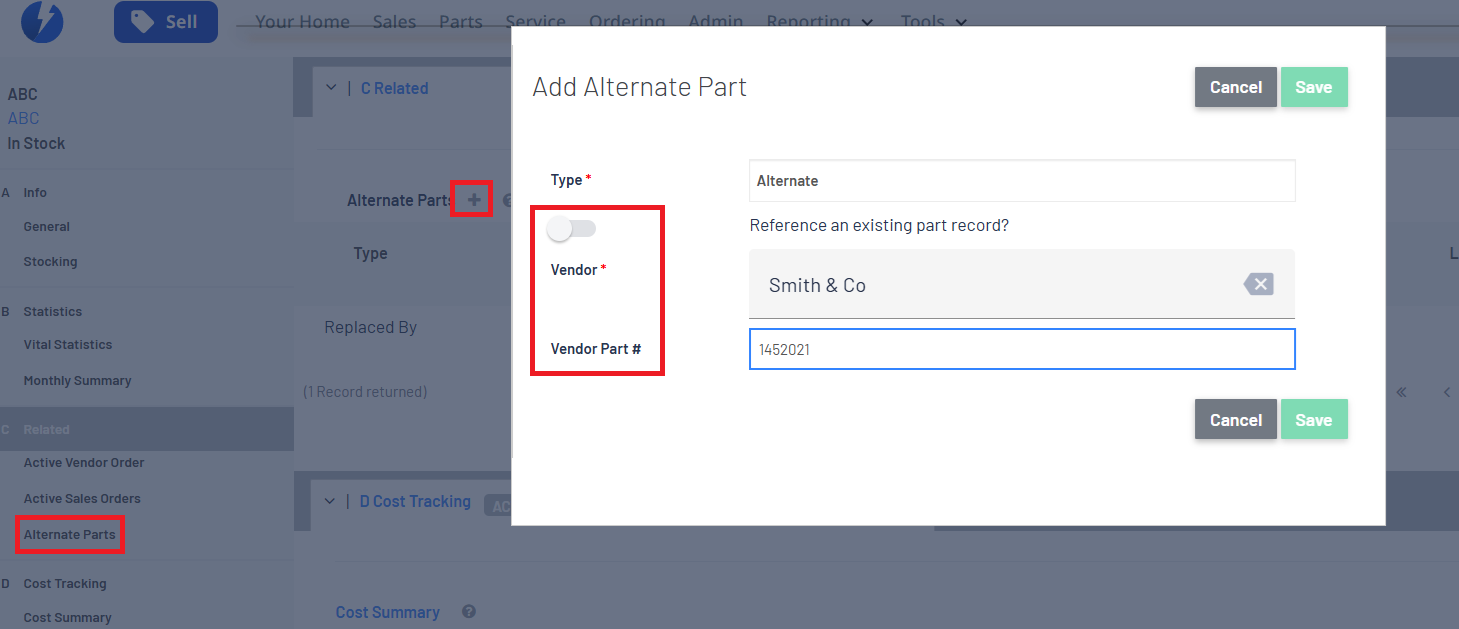
Result:
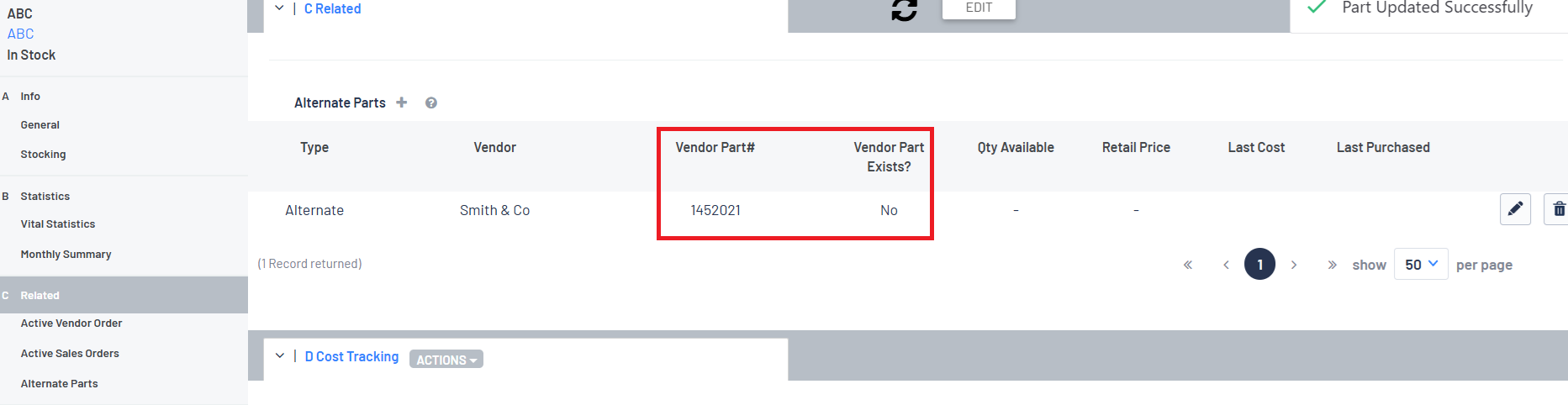
The Part Record will show there is an alternative part and a reference to the relevant Vendor and Part Number, but it will indicate that this Vendor Part does not exist
Customer Order - View Related Parts section
- When you add parts to a Customer Order that have alternate relationships, these relationships will show up by clicking on


- The Related Part selection will load for you to review

- If you search for and select a part that has been superseded, and there is no stock on hand for that part, it will automatically load the Related Part Section to advise that you have selected a superseded part, and it will automatically check the replacement part

- There will also be a notification if you add a Part to a Customer Order that has been superseded
This is to let the user know that the part has been superseded and which part it has been superseded to
It would be up to the user to action any change ie change it to the superseded part

Vendor Order (VO) and Vendor Receiving (VR) for stock - Superseded Parts
On Vendor Order (VO) and Vendor Receiving (VR), there is a notification if the Part has been superseded by another Part

There is an option for Parts that are Needed For Stock that the Dealership can swap to the superseded part
Click on the relevant part line item, and the Action box will open for the user to select Supersede Part

This action will be available to the user even if a supersession has yet to be set up for the Part Record
This allows the user to create a new supersession relationship directly from Vendor Order (VO) or Vendor Receiving (VR)
However, this action will only be available for Parts that are Needed for Stock / Required for Stock
If the Vendor Order (VO) or Vendor Receiving (VR) line item contains a link to a customer special order, the user will be prevented from processing this action
This is because the user should modify the Customer Order to have the superseded part being purchased by the Customer
Was this article helpful?
That’s Great!
Thank you for your feedback
Sorry! We couldn't be helpful
Thank you for your feedback
Feedback sent
We appreciate your effort and will try to fix the article